

Running LLM Models Locally: From First Install to First Working Model

You've decided to run a language model on your own computer. This guide takes you from zero to a first model that answers: what you actually need, installing the tool, choosing the right model for your machine, and verifying each step. Follow the instructions to the letter and you end with a conversation running, not a list of names to look up.
Before installing: what you actually need
You don't need a new computer. You need to know three things about yours:
- How much memory you have, and of what kind. On a PC the distinction is between system RAM and GPU VRAM (the graphics card's dedicated memory). A model runs fast in VRAM, slow in RAM. Without a dedicated GPU, the model still runs on the CPU — slower, but usable for small models.
- How many GB are "comfortable". An 8-billion-parameter model quantized to 4 bits weighs about 5 GB: it needs 6–8 GB of free memory. A 14B wants 9–11. A 70B wants 40+. The working rule: your memory GB (VRAM if you have a GPU) minus 2–3 of headroom, divided by 0.6, tells you the parameter count that fits. 8 GB VRAM: ~10B. 16 GB: ~22B. 32 GB: ~50B.
- How much disk space. A 5 GB model is a 5 GB download: you'll have three or four, so leave 50 GB free.
The realistic minimum today: 16 GB RAM (or 8 GB VRAM) on a PC, or a Mac with 16 GB unified memory. With that setup, 7–14B models run at usable speed — a paragraph answers in a couple of seconds.
Installing Ollama
Start with Ollama, the simplest tool: one command installs, one command downloads and starts the model, and it ships an API that other applications can call.
On macOS: open Terminal and paste:
brew install ollama
If you don't have Homebrew, download the package from ollama.com/download.
On Linux (Ubuntu, Debian, and similar):
curl -fsSL https://ollama.com/install.sh | sh
On Windows: download the installer from the same link and run it; Ollama starts in the background with an icon in the system tray.
Verify it works. In a terminal (Windows: PowerShell):
ollama --version
You should see a version number. Command not found? Reopen the terminal (or reboot): the system has refreshed its command list.
Downloading and starting your first model
Ollama's library is public: any model can be pulled by name. For the first run, pick a small fast one: llama3.1:8b (~4.9 GB) or qwen3:8b (same size, often better on non-English text).
ollama run llama3.1:8b
On the first run Ollama downloads the model (you'll see the progress bar, from a few minutes to ten depending on your connection) and then opens a conversation. Type a message, press Enter, and after a moment the model starts writing. When the answer arrives, it works: you have your first local LLM. To leave the conversation, /bye.
A few commands that will come in handy:
ollama list— models already downloaded (with disk size)ollama rm llama3.1:8b— removeollama run qwen3:8b— start another model
Choosing a model for your machine
The temptation is to start with the biggest model. The mistake: a model that doesn't fit in your memory becomes unusable — it slows down by an order of magnitude (from 30 tokens/second to 2–3) and in the end you close it. The table says what fits where:
| Memory available | Comfortable model (4-bit) | What you get |
|---|---|---|
| 8 GB (VRAM) | 7–8B | chat, summaries, email: fast |
| 16 GB (VRAM) | 12–14B | visibly better quality |
| 24 GB (VRAM, e.g. RTX 4090) | 14–32B | very good, long context |
| 32 GB (e.g. Mac unified) | 24–35B | among the best you can run |
| 64 GB (Mac) | up to 70B (slow) | big-model quality |
Speeds to expect with a quantized 8B model, measured by the community: ~128 tokens/second on an RTX 4090 (a paragraph in about two seconds), ~120 on a used 3090, ~74 on a Mac M4 Max, ~21 on a Mac mini M4, 6–10 on an ordinary CPU. Below 10 tokens/second the conversation gets tedious: that's the signal the model is too big for your machine.
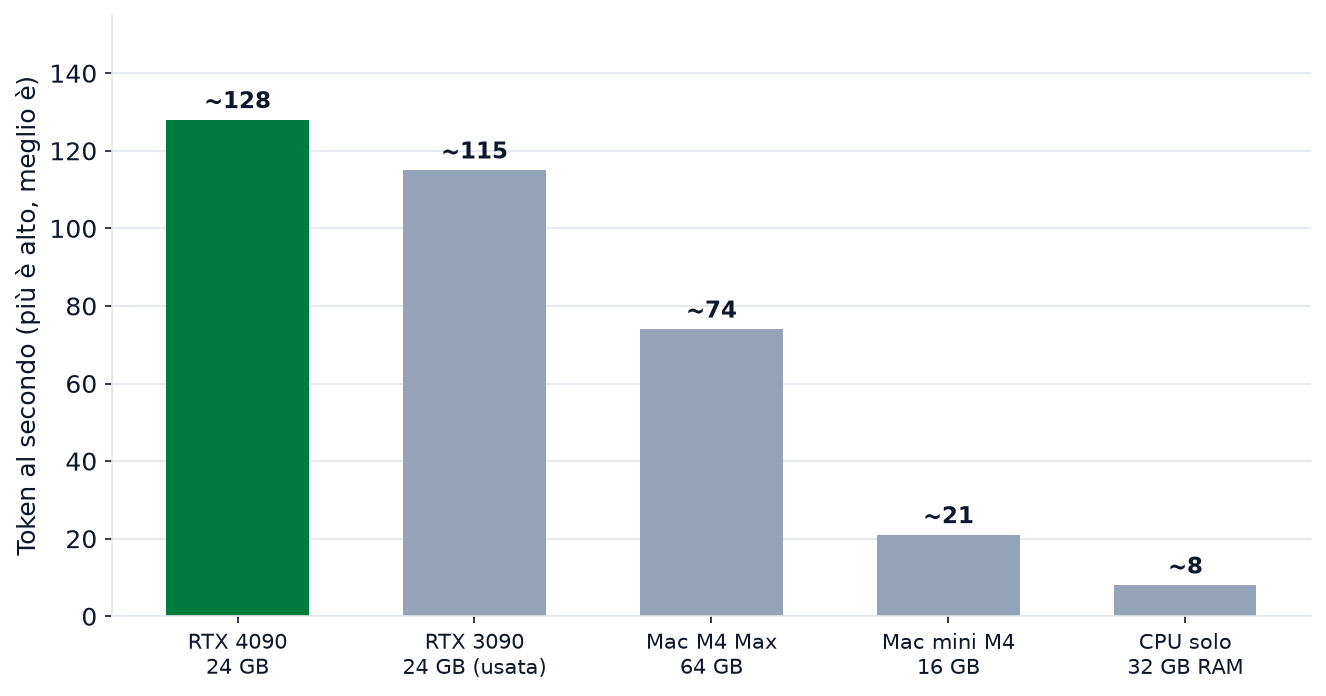
How to read the chart: speed doesn't depend on "how powerful the computer is" in the general sense — it depends on memory bandwidth: how many GB per second the memory can deliver. That's why a GPU with 8 GB but high bandwidth beats a machine with 32 GB and a slow bus, and why Macs (120–800 GB/s bandwidth) hold models that consumer GPUs can't load.
Verifying the model is where it should be
If answers come back glacially slow, the suspect is Ollama using the CPU instead of the GPU. Check:
nvidia-smi
(On a Mac: Activity Monitor, the GPU item.) During generation you should see GPU utilization and video memory in use. Nothing on the GPU? Either the model doesn't fit in VRAM (step down in size), or Ollama didn't see the card (check drivers: current Windows/NVIDIA driver, Linux nvidia-smi responds).
Connecting it to an interface
At this point the model answers in the terminal. For daily use there are two steps forward, both optional:
- Open WebUI — a web interface that looks like ChatGPT, with saved history. It takes a minute to set up with Docker:
docker run -d -p 3000:8080 --add-host=host.docker.internal:host-gateway -v open-webui:/app/backend/data --name open-webui ghcr.io/open-webui/open-webui:main
then open http://localhost:3000. If you want to understand how an interface is built around a model, read Open WebUI: the interface for your local AI.
2. The local API — Ollama listens on http://localhost:11434 and speaks the OpenAI API protocol. Any script or application that knows how to call OpenAI can call your model by changing only the address: that's how local models get into business workflows.
Typical problems, and how to fix them
- The download stalls. Corporate networks and some proxies cut downloads from Hugging Face. Try a different network, or use LM Studio (its downloader takes another route).
- The answer is glacially slow. The model is bigger than your VRAM: step down in size (8B instead of 14B) or in quantization (4-bit instead of 8). How quantization works and what it costs in quality is all in Quantization: getting more from the same hardware.
- The answers in English are weak. Change model: Qwen and Gemma are visibly better than the Llama family on English. If your concern is quality in your language, start from Italian in local models: what to expect for the comparison method.
- The GPU isn't seen. Drivers: on NVIDIA install the current driver from the vendor's site; on a Mac everything is included. Verify with
nvidia-smi(you should see the card) and restart Ollama.
The limits, stated plainly
An 8–14B local model is not a frontier model: in long reasoning, complex code and chained work the difference shows. And speed depends on your memory, not on a paid license. The strength isn't power, it's the other thing: no data leaving the machine, no monthly cap, no dependency on a provider, and a cost that, once the hardware is bought, is only the electricity. If you want to measure what it really costs you versus an API, the accounts are already done in Costs: local vs API, with numbers.
Sources
- Ollama — official installation
- Physical-bench Llama 3.1 8B Q4 across six configs (128 tok/s on RTX 4090)
- VRAM requirements per model and quantization
- Speeds and memory on Apple Silicon Macs (bandwidth and tok/s)
- llama.cpp — Apple Silicon benchmark megathread
Article generated with AI
In these reading paths
Enjoyed this article?
Subscribe to the newsletter for new tutorials and guides.